
What Is Facebook Ad Manager?
Facebook Ad Manager is your go-to tool for managing campaigns.
Facebook Ad Manager is the main tool businesses use to create, manage, and track ads on Facebook, Instagram, Messenger, and Audience Network. Think of it as your ad control center everything related to your campaigns happens there.
Here’s a simple breakdown:
What It Does
-
Create Ads: You can design ads, set goals (like traffic, engagement, or conversions), and pick who sees them.
-
Target Audience: Choose your audience based on age, location, interests, or behavior.
-
Budget Control: Decide how much you want to spend daily or over a campaign’s lifetime.
-
Performance Tracking: See results in real-time impressions, clicks, reach, cost per click (CPC), and more.
-
A/B Testing: Test different ad versions to find what performs best.
Why It’s Useful
-
Helps you reach your ideal audience easily.
-
Gives data and insights so you can improve future ads.
-
Saves time by managing all your Facebook and Instagram ads in one place.
Example
If you own a small online store, you can:
-
Run an ad for a new product.
-
Target people aged 18–35 who like shopping or your competitors’ pages.
-
Track how many clicked and bought from your website.
 How to Access Ad Manager?
 -
Go to Facebook Ads Manager
-
Make sure you’re logged in to your Facebook account that’s connected to your business page.
-
Choose Your Ad Account
-
If you manage multiple pages or ad accounts, you’ll see a list.
-
Select the business page or account you want to work on.
-
-
Explore the Dashboard
-
Once inside, you’ll see sections like:
-
Campaigns (your ad objectives)
-
Ad Sets (your audience, budget, and placements)
-
Ads (your creative images, text, and format)
-
-
-
Set Up Business Manager (if not yet done)
-
Create a Business Manager account to organize pages, people, and ad accounts more professionally.
-
Access via Meta Business Suite (Optional)
-
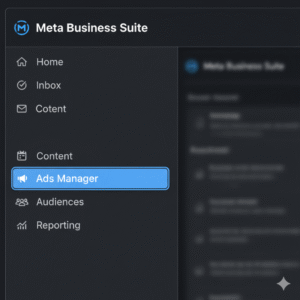
You can also open Ads Manager through the Meta Business Suite app on your phone.
-
Just tap Menu → Ads to manage or create campaigns on the go.
-
How to Create a Facebook Ad Campaign?
Step 1: Go to Facebook Ads Manager
-
Open Facebook Ads Manager.
-
Make sure you’re logged in with the account connected to your Facebook Page or Business Manager.
Step 2: Click “Create”
-
Hit the green “Create” button.
-
Facebook will ask you to choose your campaign objective (the goal of your ad).
Common objectives include:
-
Awareness: Reach more people or increase brand recognition.
-
Traffic: Send people to your website or landing page.
-
Engagement: Get more likes, comments, or shares.
-
Leads: Collect emails or sign-ups.
-
Sales/Conversions: Encourage purchases on your website.
Step 3: Set Up Your Ad Set
This is where you control the audience, budget, and schedule.
-
Audience: Choose who sees your ad (age, gender, location, interests).
-
Placements: Keep “Advantage+ placements” if you’re unsure Facebook will show your ad where it performs best.
-
Budget & Schedule: Set your daily or lifetime budget and how long you want your ad to run.
Step 4: Create Your Ad
Now comes the creative part.
-
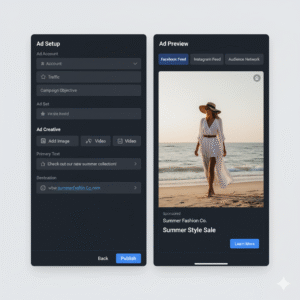
Format: Choose between Single Image, Carousel, or Video.
-
Media: Upload high quality visuals.
-
Primary Text: Write a clear, engaging caption.
-
Headline: Keep it short and catchy.
-
CTA (Call-to-Action): Add a button like Learn More, Shop Now, or Sign Up.
Step 5: Review and Publish
-
Double-check your ad preview (especially how it looks on mobile).
-
Make sure tracking (like your Facebook Pixel) is active.
-
Click Publish — and Facebook will review it before it goes live.
Pro Tips
-
Always test 2–3 versions of your ad (different images or headlines).
-
Avoid too much text on images Facebook prefers visuals with less clutter.
-
Monitor performance daily for the first few days.
What Is the Facebook Ad Manager Dashboard?
The Facebook Ad Manager dashboard is your control center for running ads on Facebook and Instagram. It’s where you create, manage, and track all your campaigns.
You’ll see three main levels:-
Campaigns: Your ad goals (like traffic or sales).
-
Ad Sets: Who you’re targeting, budget, and placements.
-
Ads: The creative part your images, videos, and text.
Main Sections of the Dashboard
1. Campaigns Tab
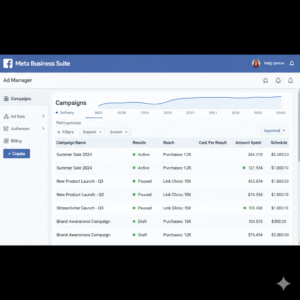
This tab gives you an overview of all your campaigns.
You can:-
See how many ads are running.
-
Check status (Active, Paused, or Completed).
-
View performance like reach, cost, and results.
Tip: Use filters to focus on specific campaigns or time periods.
2. Ad Sets Tab
Here’s where you control your audience, placements, budget, and schedule.
You’ll find:-
Audience Details: Age, gender, location, and interests.
-
Placements: Facebook, Instagram, Messenger, or Audience Network.
-
Budget & Schedule: How much you’re spending daily or in total.
3. Ads Tab
This is your creative section — where you see each individual ad.
You can:-
Preview how your ad looks on Facebook and Instagram.
-
Edit captions, images, or CTAs.
-
Check engagement (likes, clicks, views).
Key Metrics on the Dashboard
Here are the most important columns to pay attention to:
-
Reach: How many people saw your ad.
-
Impressions: How many times your ad was shown.
-
CPC (Cost per Click): What you’re paying for each click.
-
CTR (Click-Through Rate): How many people clicked vs. how many saw it.
-
Conversions: The number of people who took your desired action (like purchase or signup).
You can customize columns to show the exact data you care about for example, engagement rate or cost per result.
The Breakdown Menu
Click Breakdown to analyze your results deeper:
-
By Age, Gender, or Location see who engages most.
-
By Placement find out where your ads perform best (Instagram stories, feed, etc.).
-
By Time track performance day by day.
Tools You’ll Also See
-
Filters: Quickly find active or paused campaigns.
-
Search Bar: Locate ads by name or ID.
-
Reports: Download performance summaries in Excel or PDF format.
-
Inspect Tool: See performance trends, overlaps, and audience insights.
Pro Tips
-
Use Saved Reports to track weekly results without setting filters again.
-
Keep an eye on your Relevance Score (or Quality Ranking) it affects your ad cost.
-
Check your ads daily when they first start running to spot performance issues early.
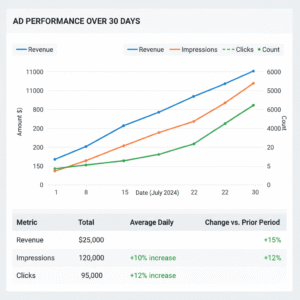
Tips to Optimize Your Facebook Ads
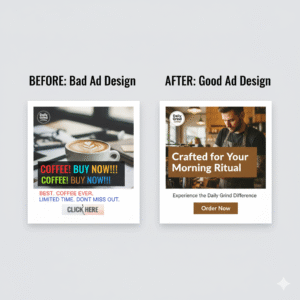
1. Use High-Quality Visuals
Your ad’s image or video is the first thing people notice. Use clear, bright, and relevant visuals that match your brand vibe. Avoid pixelated or random stock images real or lifestyle photos work best.
2. Test Multiple Ad Creatives (A/B Testing)
Never rely on just one ad. Run a few versions with different headlines, visuals, or captions. Compare the results and keep the one that performs best.
3. Focus on One Clear CTA
Each ad should have one goal like Shop Now, Sign Up, or Learn More. Too many calls to action can confuse people and lower engagement.
4. Monitor Results and Adjust Weekly
Check your Ads Manager dashboard weekly. Pause underperforming ads, increase budget for top ones, and tweak targeting or captions based on results.
5. Avoid Too Much Text in Images
Facebook’s algorithm prefers cleaner visuals. Keep text minimal use captions or headlines for details instead.
Common Mistakes to Avoid in Facebook Ads
Running Facebook ads can bring amazing results but only if you avoid a few common traps. Here are three mistakes that can hurt your ad performance and how to fix them.
1. Targeting Too Broad an Audience
It might feel smart to reach as many people as possible, but broad targeting usually leads to wasted spend. You’ll end up showing ads to people who don’t care about your offer.
Fix it:
Narrow your audience based on interests, age, location, or behavior. Use Facebook’s Audience Insights to learn who’s actually engaging with your ads.Example:
Instead of targeting all “18–45-year-olds in Pakistan,” target “people aged 18–30 interested in online shopping or digital marketing.”
2. Ignoring Ad Frequency
If your audience keeps seeing the same ad again and again, it becomes annoying and ineffective. High frequency often leads to ad fatigue people start scrolling past your content.
Fix it:
Check your Frequency metric in Ads Manager. If it’s higher than 3, refresh your visuals or text, or expand your audience slightly.Example:
If one ad has a frequency of 5 and performance is dropping, swap in a new image or caption to grab attention again.
3. Not Tracking Conversions
Running ads without tracking conversions is like driving blindfolded. You might get clicks, but you won’t know if they’re leading to sales or signups.
Fix it:
Set up the Meta Pixel (or Conversions API) on your website. This helps you track actions like purchases, leads, and page views so you can measure what’s actually working.Example:
If your goal is sales, track “Purchase” events not just link clicks.Final Thoughts
Even small mistakes can drain your ad budget fast. By keeping your audience specific, monitoring ad frequency, and tracking real results, you’ll build Facebook ad campaigns that actually convert.
Summarize that Facebook Ad Manager is powerful when used with strategy and testing. Encourage readers to start with a small budget and learn from results.
-